
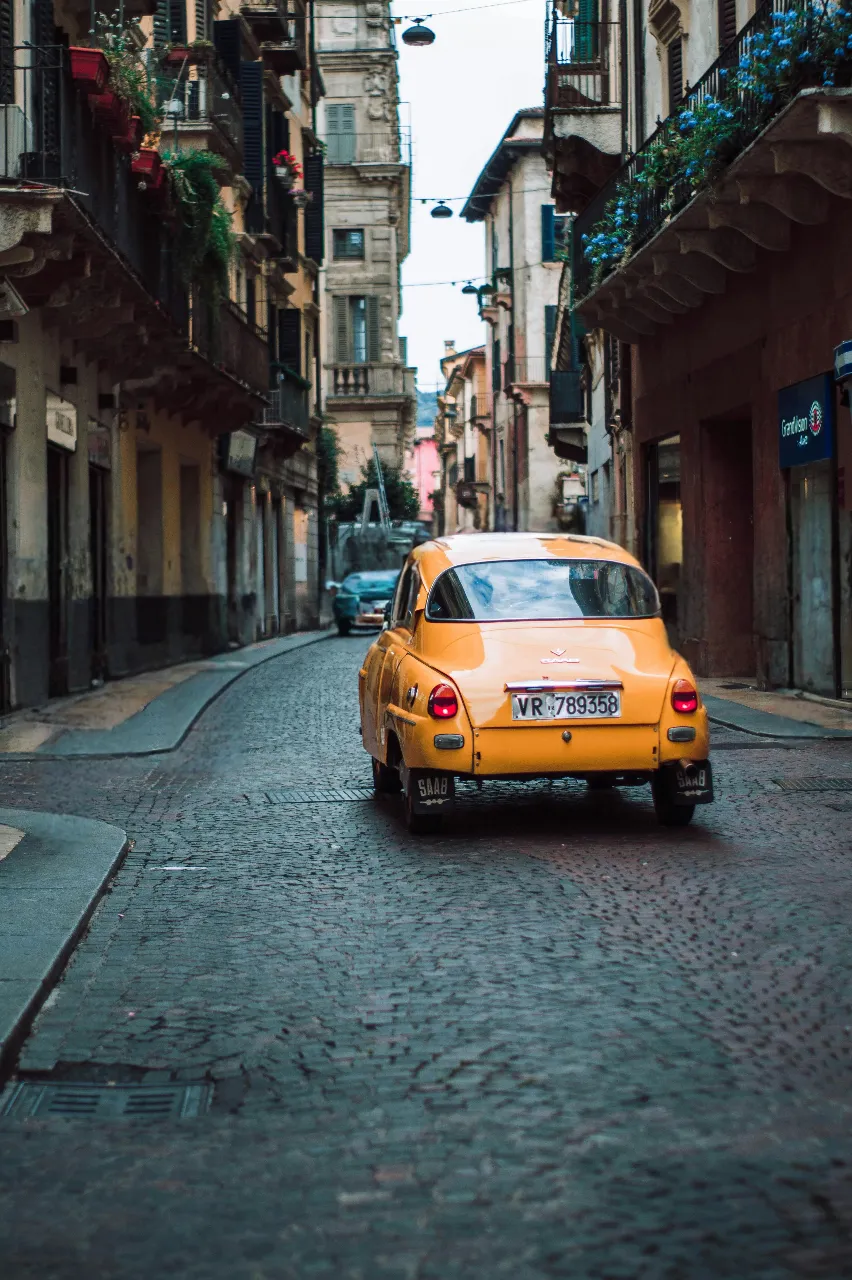
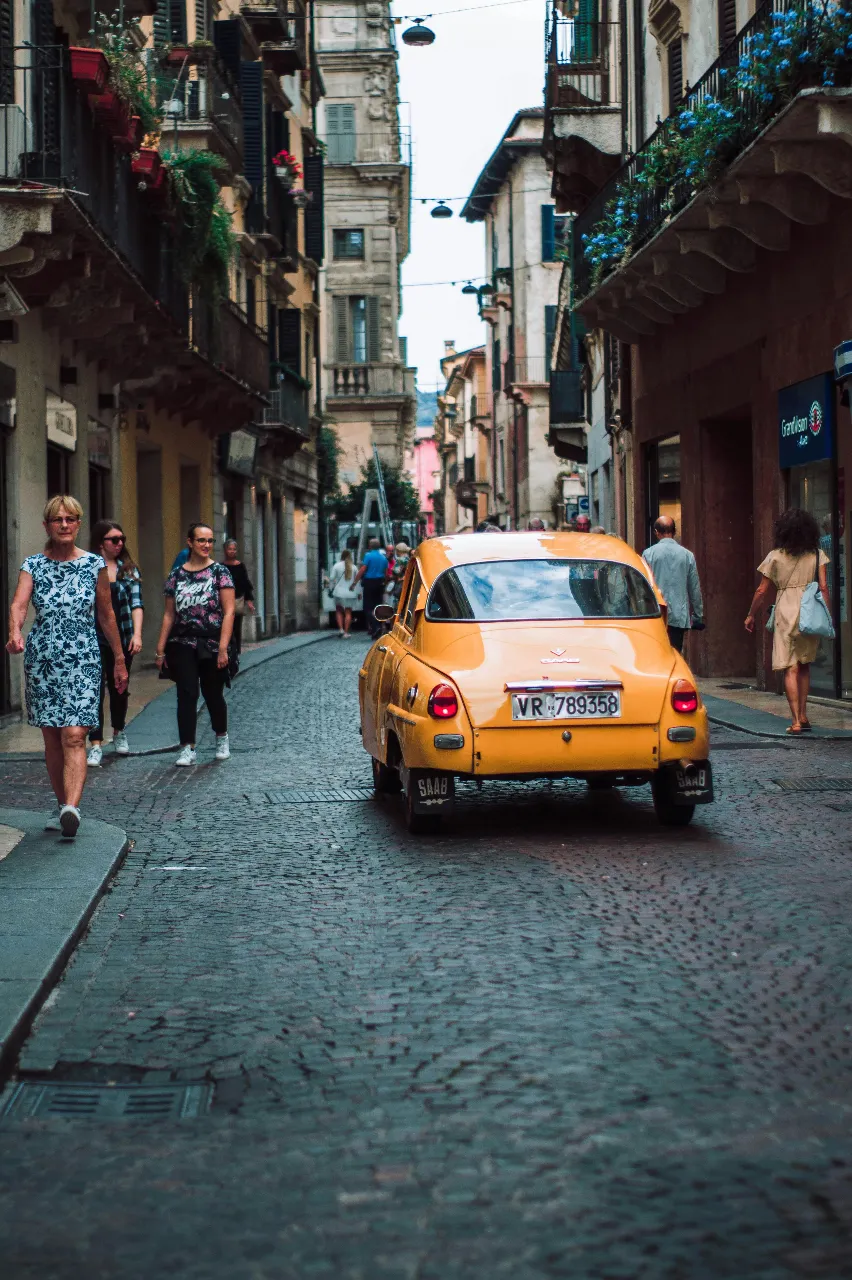
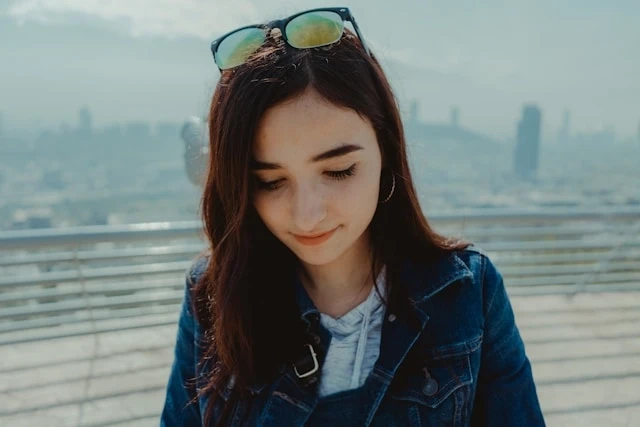
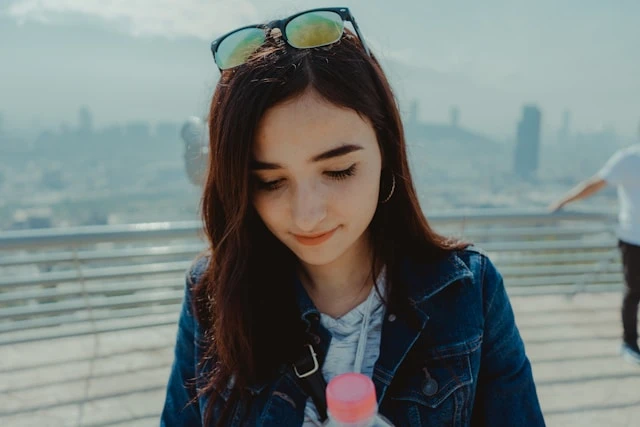
Remoção de pessoas
Passe o pincel sobre pessoas indesejadas e deixe a IA reconstruir a cena atrás delas.
Limpeza de foto IA
Envie uma imagem, passe o pincel sobre pessoas, turistas, bagunça ou distrações e deixe a IA reconstruir a cena atrás deles — depois baixe um PNG limpo.
Exemplos
Compare resultados antes e depois ao remover pessoas, distrações e bagunça.
Remover turistas
Limpe uma foto de viagem removendo pessoas que desviam a atenção da cena.
Ferramentas de remoção de objetos
Explore ferramentas dedicadas para remover pessoas, turistas, bagunça e objetos indesejados de fotos.
Três passos do envio à exportação. Faça login primeiro para que envios e créditos fiquem vinculados à sua conta.
Escolha um JPG ou PNG do seu dispositivo ou arraste para a área de trabalho.
Ajuste o tamanho do pincel e pinte sobre o objeto, pessoa ou distração indesejada até cobrir toda a área.
Execute o removedor de objetos, revise o resultado antes/depois e baixe a imagem limpa.
Recursos essenciais para remoção de objetos — compatíveis com o restante do kit de ferramentas IA RemoveLayer.
Passe o pincel sobre pessoas indesejadas e deixe a IA reconstruir a cena atrás delas.
Elimine transeuntes de fotos de viagem e pontos turísticos.
Remova bagunça, pequenas distrações e imperfeições de qualquer imagem.
Apague distrações maiores preservando textura e iluminação naturais.
Inspecione a qualidade do preenchimento em um controle deslizante antes do download.
Acesse páginas dedicadas para pessoas, turistas, bagunça e remoção geral de objetos.
Perguntas comuns sobre pincel, processamento e download de fotos limpas.
Kit de remoção
Remoção de fundo, objetos, texto e marcas d'água com o mesmo fluxo do upload ao download — escolha a ferramenta certa para sua imagem.
Tutoriais sobre remoção de distrações, bagunça e objetos indesejados de imagens.
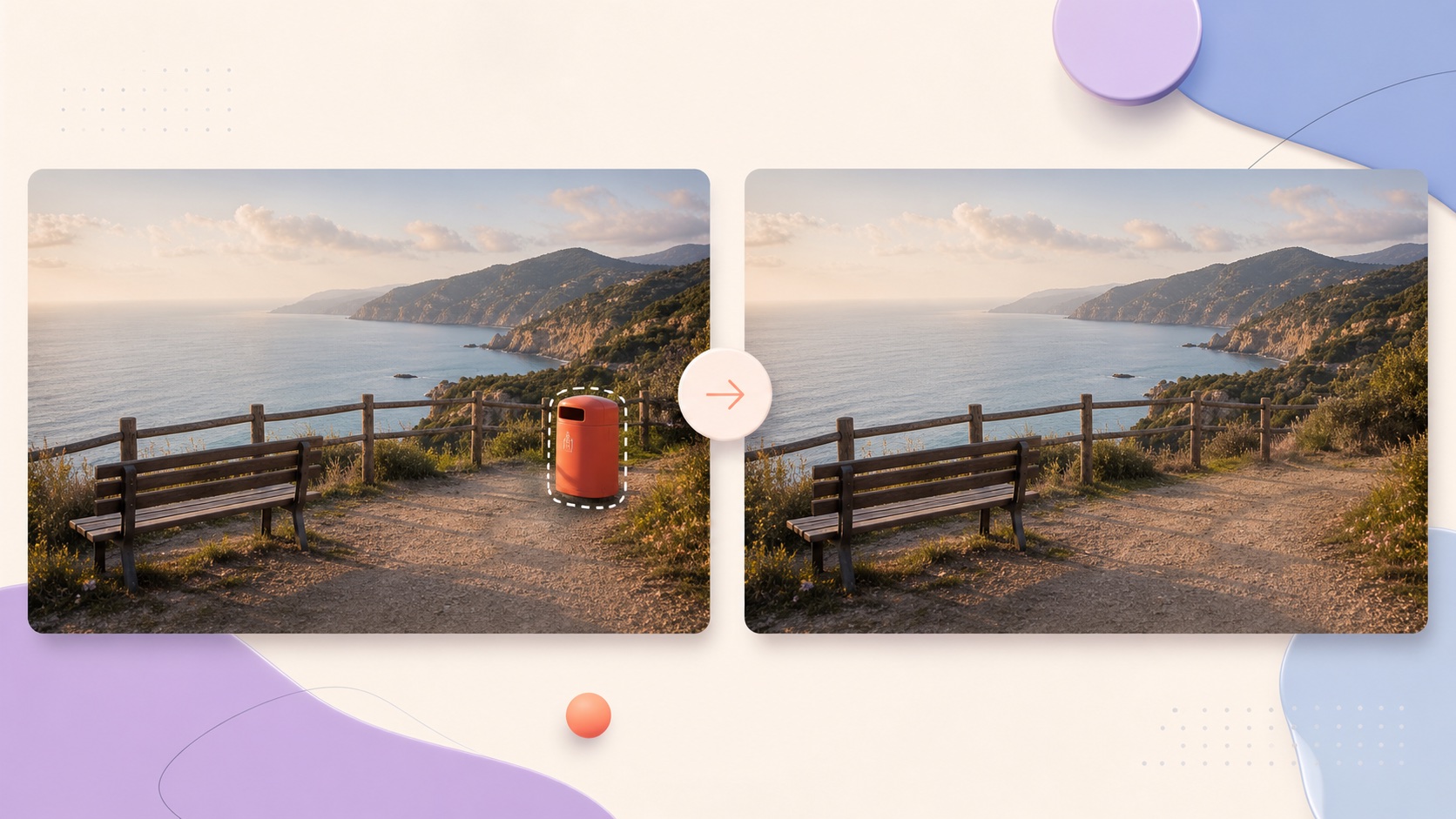 Limpeza de imagens
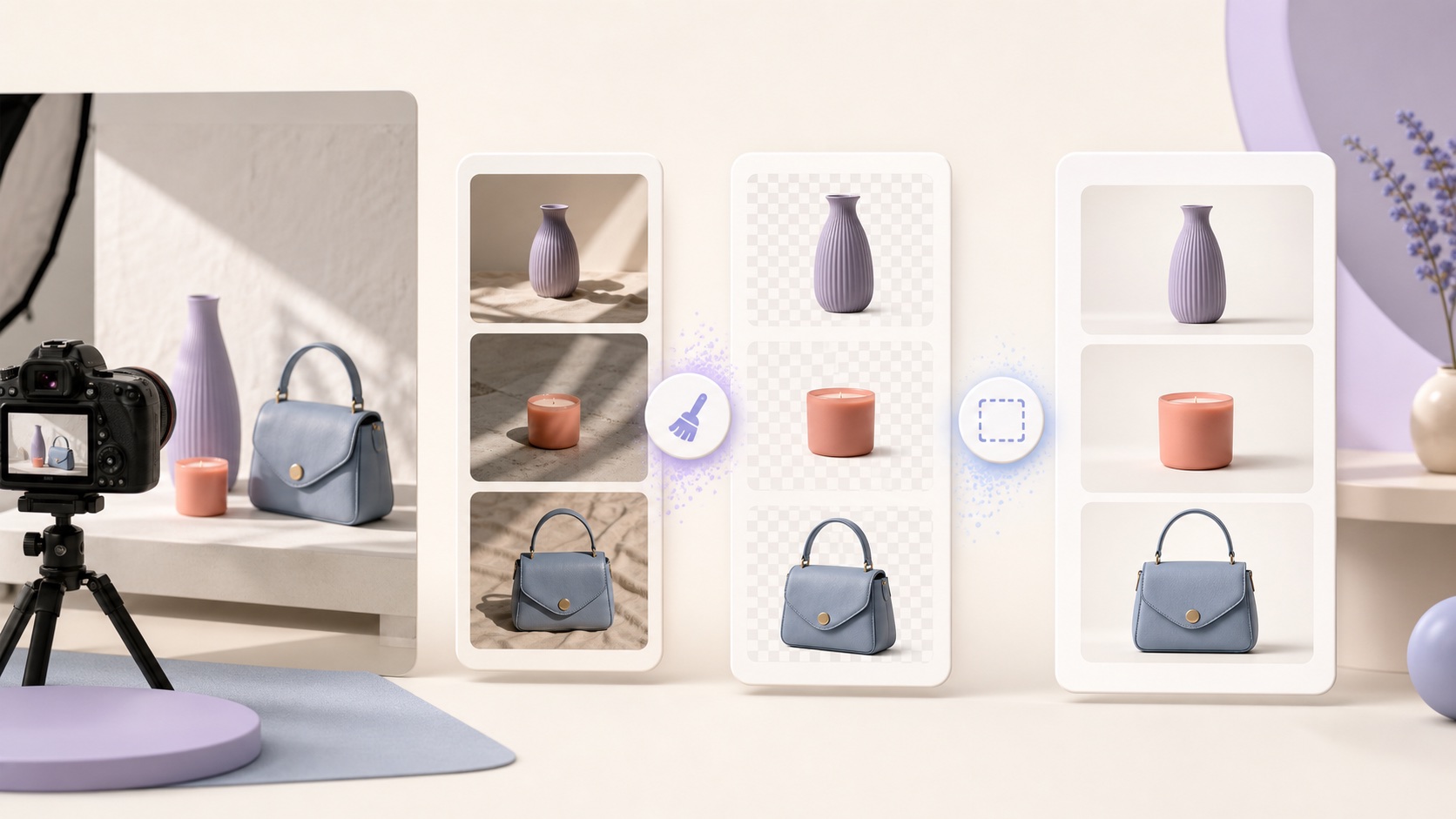 Limpeza de imagens
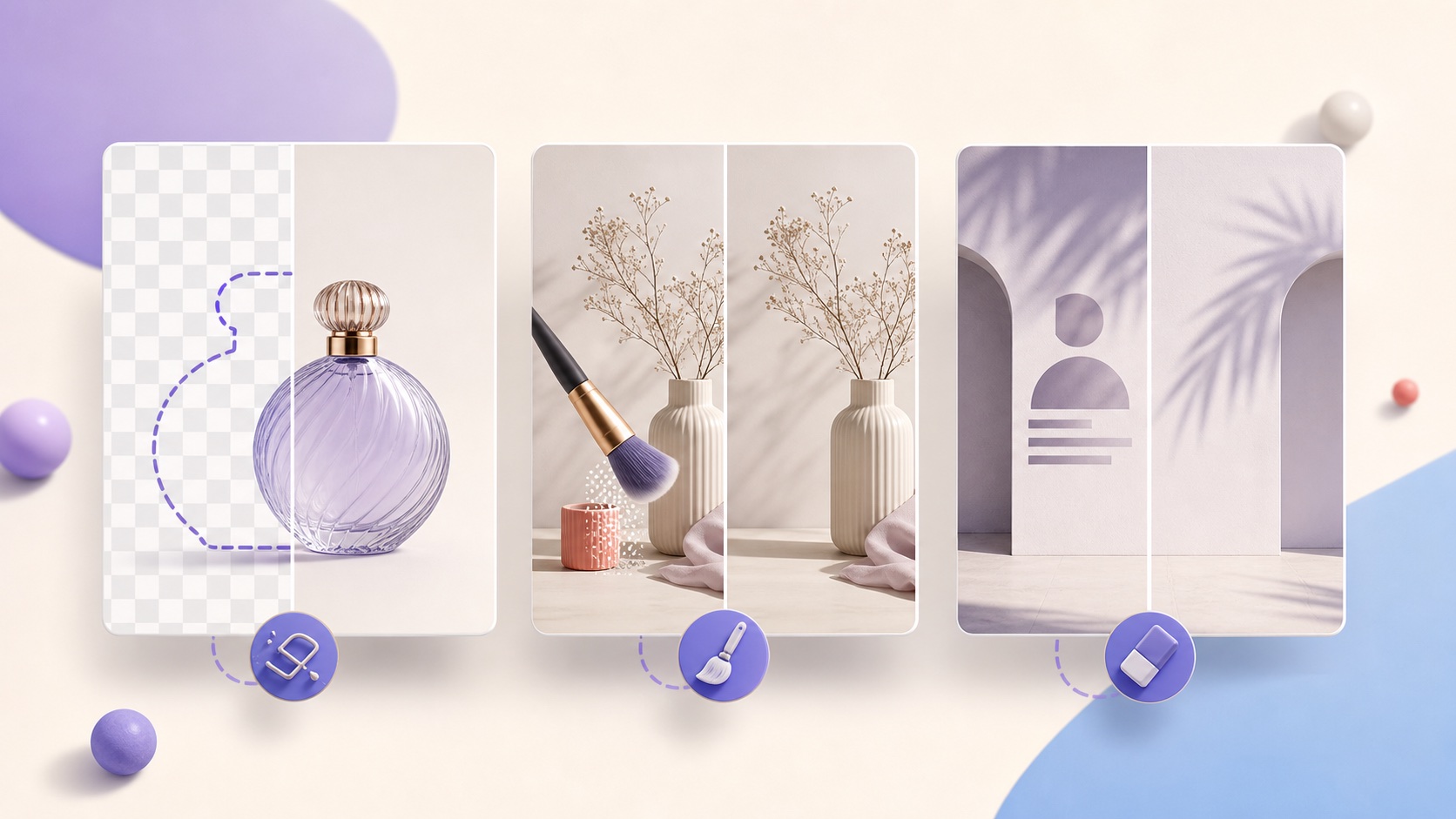 Limpeza de imagens
Volte à ferramenta, passe o pincel sobre a distração e baixe quando o resultado estiver correto.